Canva has a big built-in font library, but sometimes you need a specific font for your brand, a client, or a design style you love. Canva lets you upload your own fonts to a Brand Kit, so they appear in the font menu just like Canva’s own fonts. Here is how it works.
What You Need
According to Canva’s help center, uploading fonts is available on Canva Pro, Canva Teams, Canva Business, Canva Education, and Canva for Nonprofits. On team plans, it is available to team owners, administrators, and brand designers. Free accounts cannot upload fonts.
You also need:
- A font file in OTF, TTF, or WOFF format. Canva does not support variable fonts.
- A font licensed for embedding. Canva may refuse fonts whose license does not allow it, and you should only upload fonts you are licensed to use.
How to Upload a Font to Canva
- From the Canva homepage side panel, select Brand.
- If you have several Brand Kits, choose the one you want from the dropdown.
- Go to Fonts, select Add to category, then Upload a font.
- Drag and drop your font file, or select Choose files and pick it.
- Confirm, and wait for the upload to finish.
The font now appears in the font dropdown in your designs, usually under your brand fonts.
Uploading Bold and Italic Styles
Canva treats each style as a separate file. To use bold, italic, or other weights, upload each style file in addition to the regular one. Canva allows up to 18 styles per font family and up to 500 fonts per Brand Kit. Condensed styles need to be uploaded separately.
Setting Brand Fonts for Headings and Text
After uploading, you can assign fonts to roles in your Brand Kit, such as title, subtitle, and body. That way your team uses the right font for each job, and your designs stay consistent. If you are still choosing those fonts, read how to choose the right fonts for your brand and our guide to font pairing.
Troubleshooting
The font will not upload
- Check the format: only OTF, TTF, and WOFF are supported.
- Check the license: fonts that do not allow embedding may be blocked.
- Make sure the file is not still inside a ZIP folder.
Styles do not group together
Fonts with incorrect internal names may appear as separate families. Canva suggests deleting them and fixing the family name before uploading again.
Swashes and alternates are missing
Canva has limited support for advanced OpenType features. Some script fonts include alternate letters that can be typed by copying the character from a character map or glyph viewer, but results vary.
Fonts That Work Well in Canva
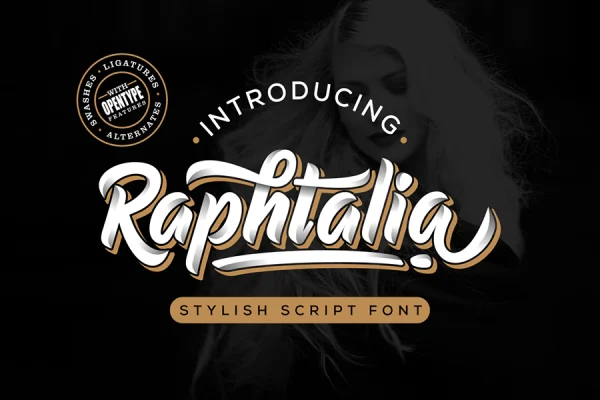
Script and display fonts are especially popular for Canva templates, social media posts, and invitations. For example, Raphtalia works well for bold social media headlines. Fonts that are not in Canva’s own library, including all Nurf fonts, must be licensed from their designer before you upload them, and only people covered by that license may use them in your Brand Kit. Sharing a Canva template that contains the font can mean sharing access to it, so never do that with people outside your license. Our licensing page explains the options.
Frequently Asked Questions
Can I upload fonts to Canva for free?
No. Font uploads require a paid or eligible plan such as Canva Pro, Teams, Business, Education, or Nonprofits.
Why does Canva say my font is not licensed for embedding?
The font file includes a setting that tells apps whether embedding is allowed. If it is restricted, Canva may not accept it. Contact the font designer or choose a font with a suitable license.
Can I use uploaded fonts on the Canva mobile app?
Fonts uploaded to your Brand Kit are linked to your account, so they are generally available wherever you use that Brand Kit. Upload is done from the Brand section.